• Enterprise Calendar Planning Across Teams

    27 January 2026

    If you liked this insight, perhaps consider signing up for our monthly newsletter to receive more exclusive subscriber content:

  • Project and Programme Calendar Planning

    26 January 2026

    If you liked this insight, sign up FREE for our monthly newsletter and receive exclusive subscriber content:

  • JFDI WEB PARTS

    Bring clarity to your team’s planning with a clean, visual year, month, week, grid, and timeline calendar for SharePoint Online. Calendar Planner helps organisations coordinate, schedule, and communicate events and activities across the year.

    All powered by SharePoint lists

    JFDI's Calendar Planner - SharePoint Web Part Icon

    Give your team instant clarity with at-a-glance calendar views that make planning effortless

    Bring everyone into sync with colour-coded events that turn complex schedules into a shared, intuitive story

    Feel confident and in control with secure, SharePoint-based data that you can summarise, explain, and bring to life

    Why Calendar Planner?

    A better way to plan and visualise your year

    It’s fast, intuitive, lightweight and built entirely for SharePoint Online.
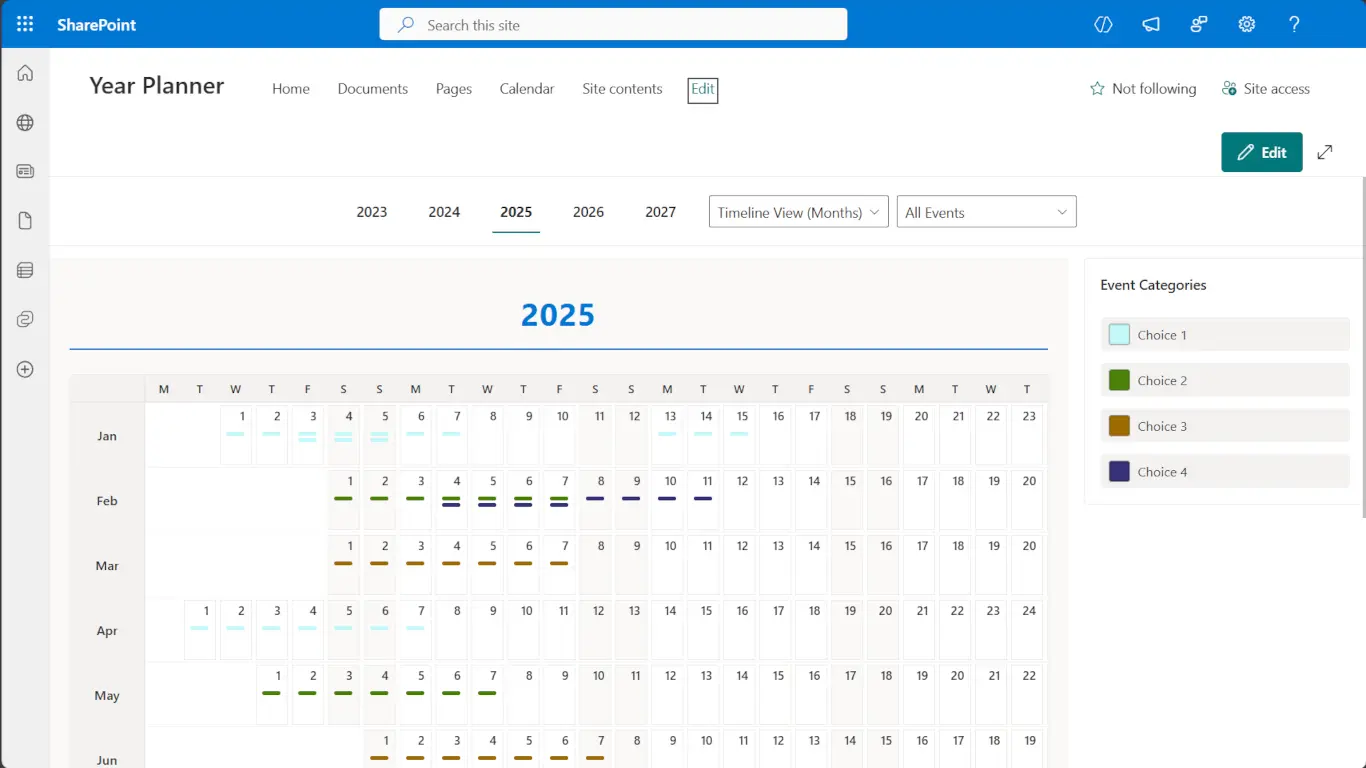
    This screenshot highlights Calendar Planner’s Timeline View (months), giving your team a complete, at-a-glance overview of events across all 12 months. Colour-coded categories make it easy to spot patterns, busy periods, and team-level activities, while the simple SharePoint-integrated interface keeps everything organised, familiar, and effortless to navigate. Perfect for annual planning, high-level reporting, and keeping everyone aligned throughout the year.
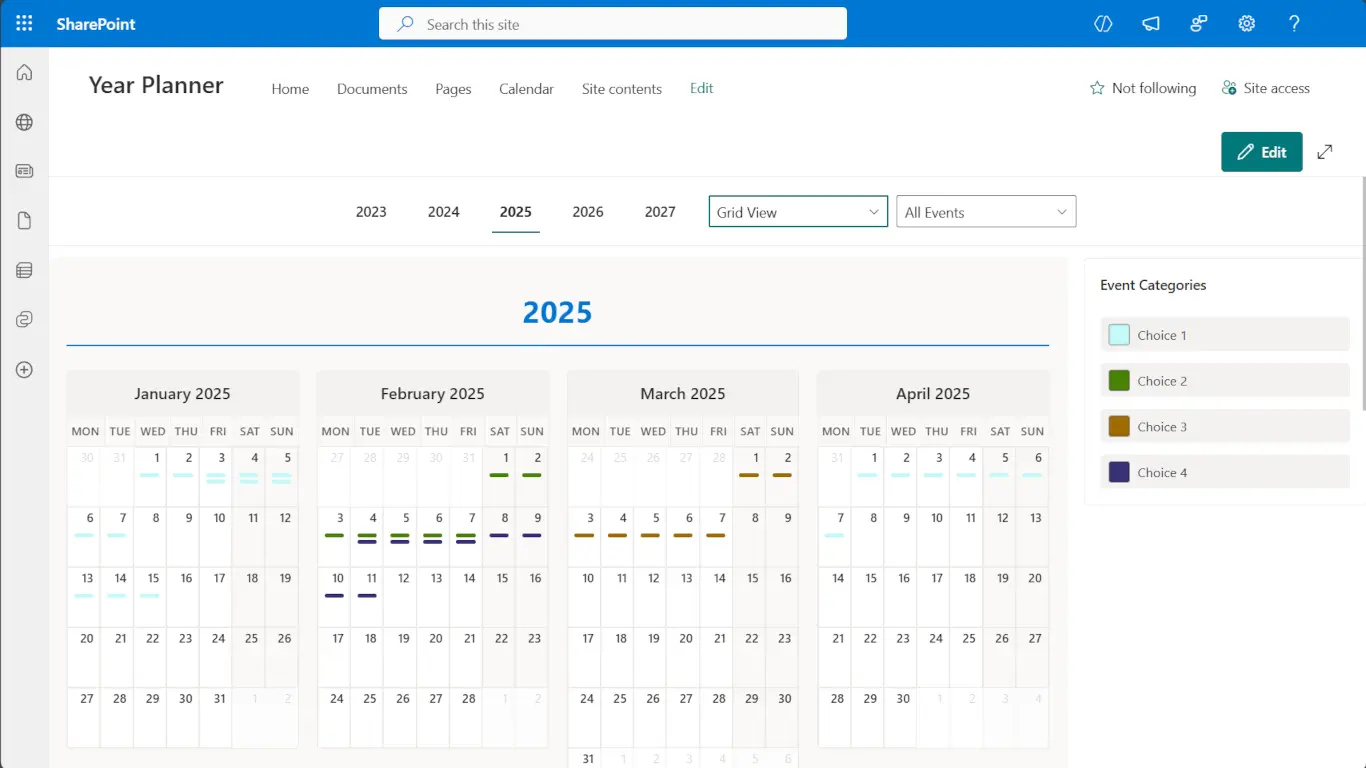
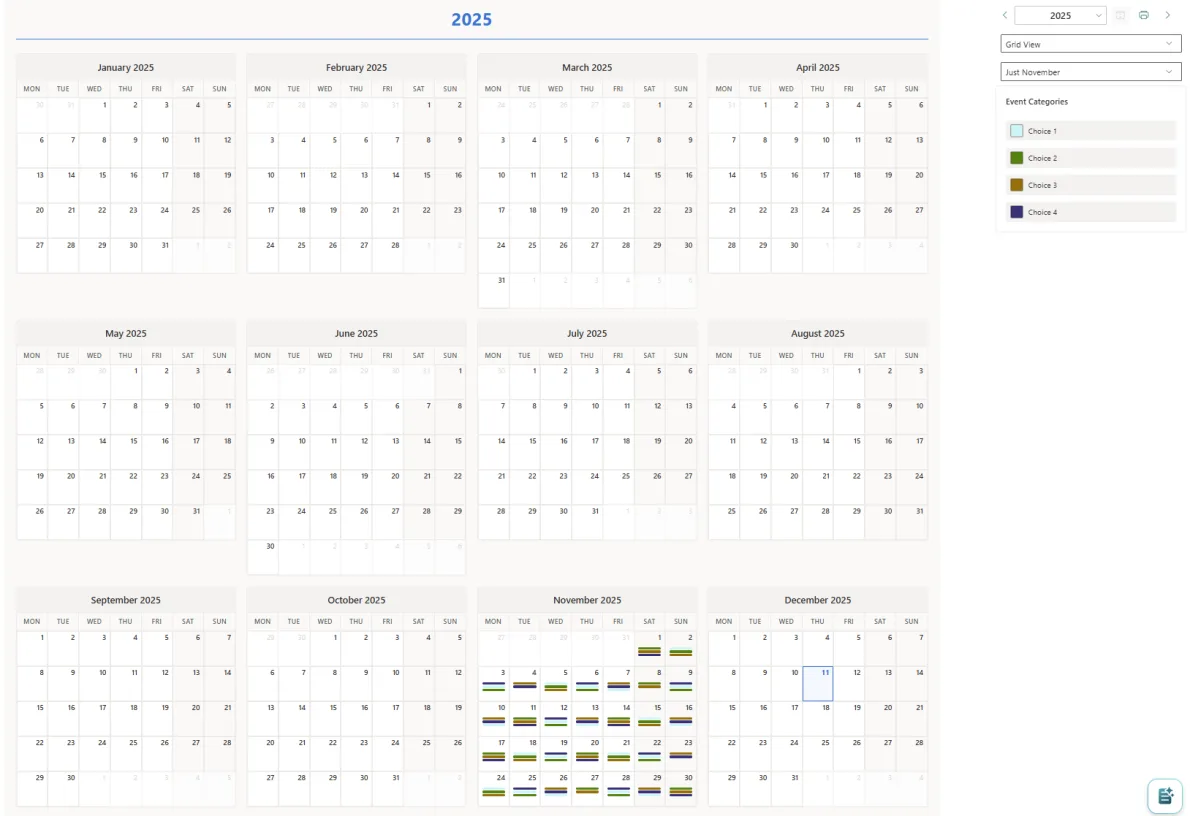
    This screenshot showcases the Grid View, which presents your calendar in a compact, multi-month layout. Each month is displayed in a tile-style grid, making it easy to compare schedules, spot patterns, and understand upcoming commitments across the quarter. Ideal for team meetings, leadership reporting, and long-range planning.
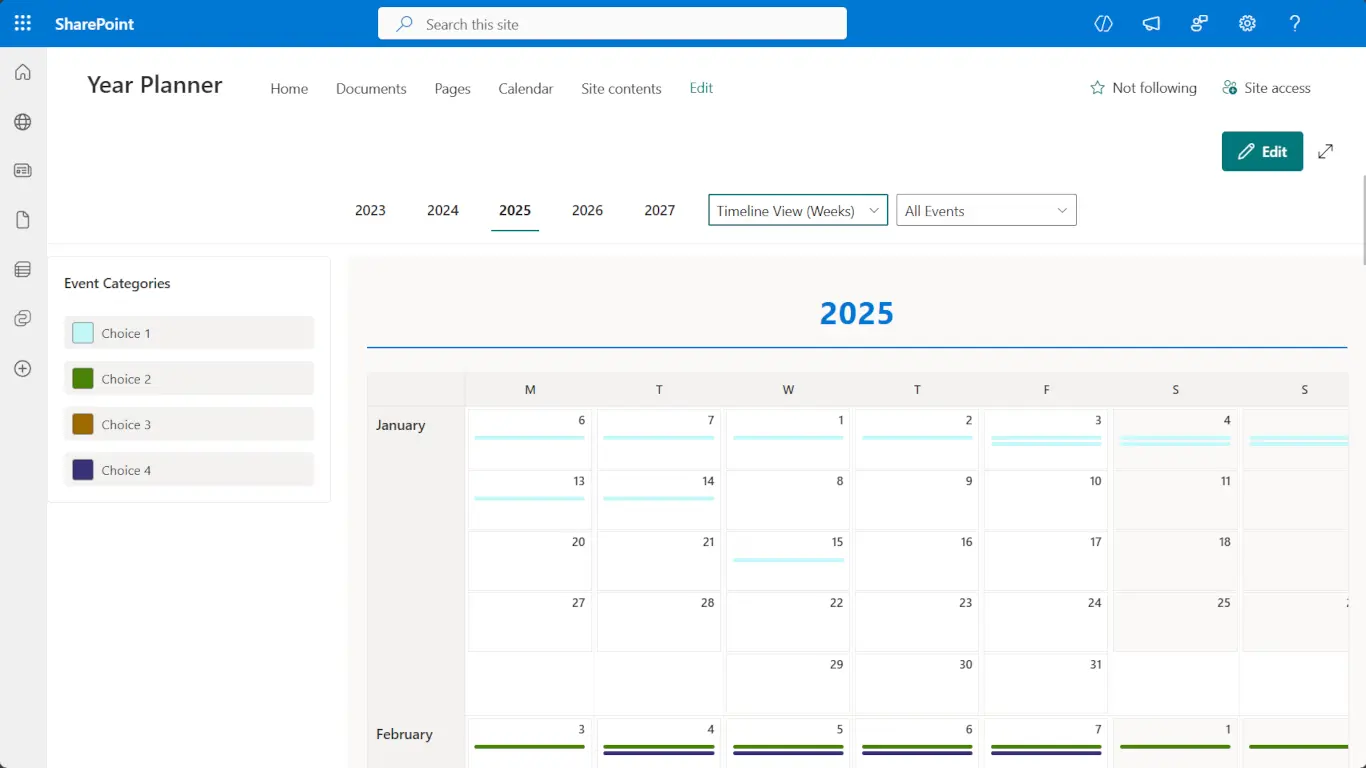
    Understand Workloads and Overlaps at a Glance. This screenshot highlights the Weekly Timeline View, ideal for spotting overlaps, upcoming deadlines, or busy periods across your team. Events extend visually across multiple days, and colour-coded categories provide immediate context. This view is perfect for operational planning, resource management, and quickly understanding how work is distributed throughout the month.
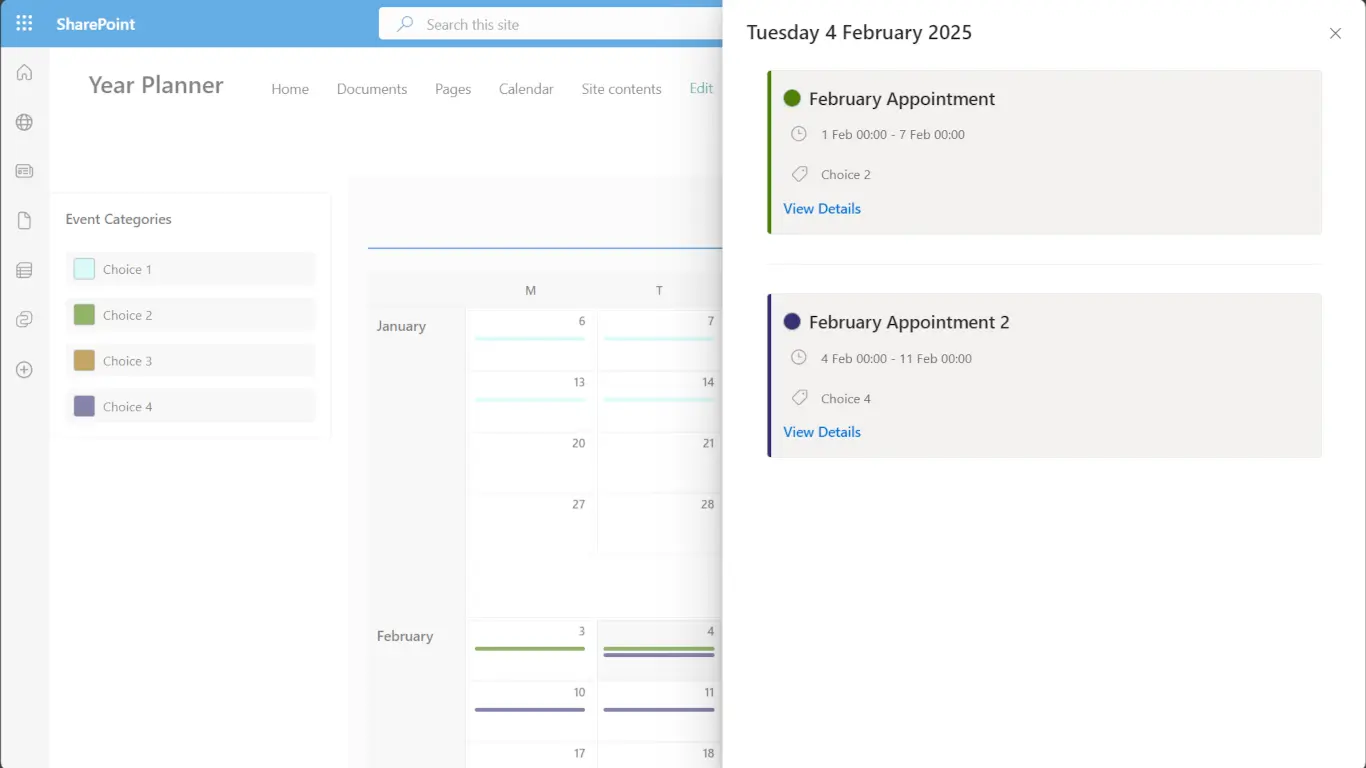
    A Clear, Modern Way to View and Manage Appointments. This screenshot shows Calendar Planner’s Event Details panel, which appears when selecting a day or appointment. Users can instantly view event information, including dates, duration, category, and additional notes. Colour-coded category tags and a clean layout make it easy to understand what’s happening at a glance, while the “View Details” link allows deeper editing or review. Perfect for managing multi-day events and staying organised.

    Built for Teams & Organisations

    • Internal Communications
    • HR & Training Teams
    • PMO & Project Managers
    • Departmental Scheduling
    • Resource Planning
    • Organisation-wide event visibility

    Features

    Colour-Coded Categories: Create categories for projects, departments, resource types, or event types — each with its own colour palette for instant visual clarity

    SharePoint-Native Storage: All data is stored in your organisation’s SharePoint Online tenant using standard lists — no external data store, no hidden services

    Fast Event Management: Click any day to add an event. Edit or delete events via a modern side-panel experience. Everything is just one click away

    How It Works

    1. Install the SPFx package: Deploy via your SharePoint App Catalog

    2. Add the web part to a modern page: Insert Calendar Planner like any other SharePoint modern web part

    3. Create or connect the event list: The app sets up a SharePoint list automatically

    4. Configure categories and defaults: Choose colours and event types

    5. Start planning immediately: Everything is ready to use within minutes

    FREE

    £0.00

    Get started with essential calendar visualisation


    Year Grid View – Full annual calendar overview

    SharePoint Pages – Deploy on any SharePoint site

    Event Viewing – See all your calendar events at a glance

    User Licensing – NOT required for underlying list interactions or for using free features

    (Enterprise features are available for 30-days)

    STANDARD

    £2.28

    Everything in Free, plus powerful planning tools


    Additional Views – Month Timeline and Week Timeline views

    Full Event Management – Create, edit, and delete events directly

    Smart Filtering – Filter events using SharePoint list views

    Teams Channel Tabs – Add to any Teams channel

    Layout Options – Configurable navigation and legend positioning

    Colour Customisation – Default colours, category colours, and unique colour coding

    User Licensing – ONLY needed for using standard features

    (A 30-day trial, then costs are per user, per month)

    ENTERPRISE

    £5.31

    Everything in Standard, plus these advanced capabilities


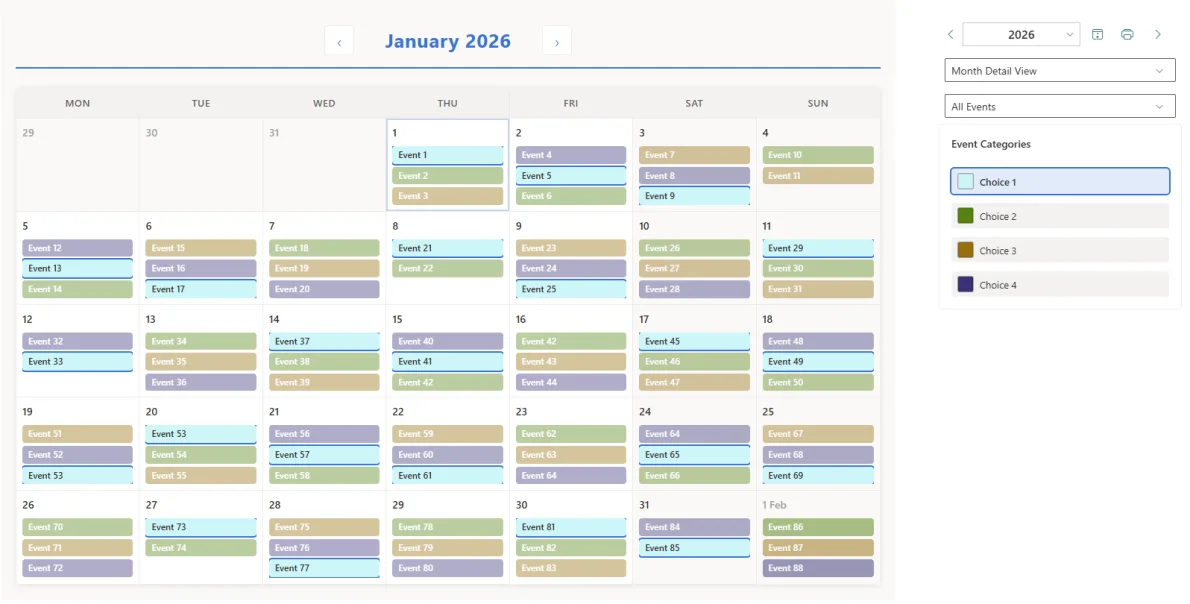
    Month Detail View – Detailed month-by-month calendar display

    Gantt Chart – Timeline-based project visualization

    Print Support – Print-ready calendar output

    Calendar Overlay – Aggregate up to 5 SharePoint calendars

    Teams Personal Tabs – Personal app experience in Teams

    Outlook & Microsoft 365 – Use across the full M365 app ecosystem

    Field Configuration – Choose which fields display in event details

    Custom Field Mapping – Map any date/category fields from your lists

    User Licensing – ONLY needed for using enterprise features

    (A 30-day trial, then costs are per user, per month)

    Insights, Use Cases & Scenarios

    (Free Edition)

    A university department needs a clear view of key academic dates and programme milestones, without editing or managing events from the calendar itself.

    READ MORE

    (Standard Edition)

    Programme and PMO teams need to coordinate activity across the year and keep shared schedules accurate as plans evolve.

    READ MORE

    (Enterprise Edition)

    Large organisations need visibility across operational, regulatory and governance plans, without consolidating them into a new planning system.

    READ MORE

    Frequently asked questions

    Below are commonly asked questions about this Web Part

    When configuring the ‘Calendar Planner’ web part on any page, SharePoint admins can effortlessly enhance the functionality of each Calendar.

    Some of the settings will only have an effect if you are subscribed to the corresponding tier feature.
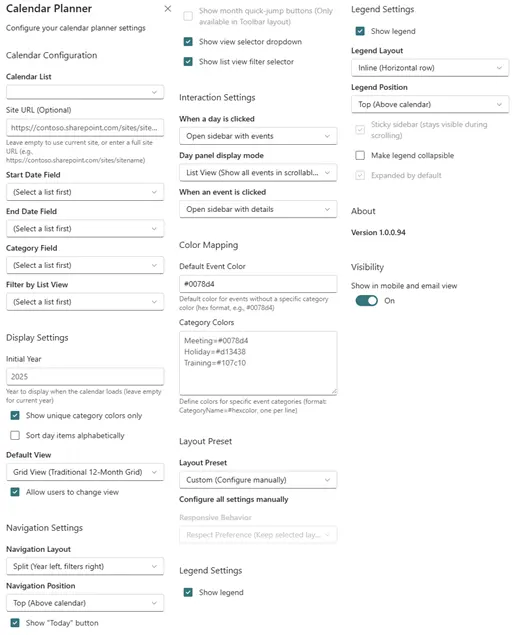
    To deploy Web Parts in SharePoint, follow these general steps:

    • Upload and install the package in the App Catalog or ‘Manage Apps’ in the Tenant App Catalog
    • Edit the target web page, add the deployed Web Part from the web parts gallery, and configure its properties
    • Save and publish the page to make the Web Part visible to users
    • Ensure you refer to the official documentation for specific instructions based on your SharePoint version and deployment method.”

    Get Started

    To ensure a successful deployment of a web part in SharePoint, follow these steps:

    • Visit the SharePoint site you wish to use the web part on
    • Edit a page where you intend to add the web part
    • Locate the web part in the web part gallery
    • Add the web part to the page by dragging it into the desired zone or section
    • Configure the web part’s properties, including alignment, icon selection, and styling options
    • Save and publish the page
    • Preview the page or access it as a regular user to verify the visibility and proper functioning of the web part

    If the web part appears as expected and functions correctly on the page, it indicates a successful deployment. However, if any issues arise or the web part doesn’t behave as intended, it’s advisable to review the deployment process and ensure each step is followed accurately.

    Additionally, thoroughly test the web part across various scenarios, such as different browsers or user roles, to ensure compatibility and proper functionality.

    In case of any issues, please refer to our support documentation.

    If you don’t find the answer, please contact us via here.

    JFDI can help with the installation and configuration on request.

  • Academic Calendar Planning in SharePoint

    21 January 2026

    If you liked this insight, sign up FREE for our monthly newsletter and receive exclusive subscriber content:

  • JFDI’s latest application now available on the Microsoft Marketplace

    19 December 2025

    As the part of the Microsoft’s Independent Software Vendor enrollment, we are expanding our application portoflio in the Microsoft’s Marketplace. For us being an ISV is not just a badge. It is testiment of the work we have been doing for years: building tools that solve real-world challenges inside the Microsoft 365 ecosystem. Currently, in […]

  • JFDI's Calendar Planner - SharePoint Web Part Icon
    Calendar Planner – SharePoint Web Part

    Purchasing options

    NOW LIVE! – Click here to use the Microsoft Marketplace to sign up for this web part on a subscription basis:

    Alternatively, you can contact us directly to order this web part via a traditional invoice payment route:

    Insights, Use Cases & Scenarios

    (Free Edition)

    A university department needs a clear view of key academic dates and programme milestones, without editing or managing events from the calendar itself.

    READ MORE

    (Standard Edition)

    Programme and PMO teams need to coordinate activity across the year and keep shared schedules accurate as plans evolve.

    READ MORE

    (Enterprise Edition)

    Large organisations need visibility across operational, regulatory and governance plans, without consolidating them into a new planning system.

    READ MORE
    FREE NEWSLETTER SUBSCRIPTION

    ‘JFDI Brief’

    Sign up for the latest news, insights and whitepapers on how to modernise, migrate and build faster

    for Microsoft 365 & SharePoint Online

    Introduction

    Calendar Planner is a SharePoint Framework (SPFx) web part designed for Microsoft 365 tenants. It provides year, month, week, and grid timeline views. All for event management using SharePoint list data. This guide walks you through the installation, configuration, licensing activation, and initial setup process.

    JFDI's Calendar Planner - SharePoint Web Part Icon

    Before installing Calendar Planner, ensure:

    Prerequisites Required

    • Microsoft 365 tenant ✔
    • SharePoint Online ✔
    • Permission to upload apps to the SharePoint App Catalog
    • Permission to add web parts to modern site pages ✔
    • An active Calendar Planner licence via your JFDI SaaS subscription ✔

    Optional (recommended)

    • Site Collection Administrator rights
    • A modern communication or team site for deployment
    • SharePoint List(s) for managing events and appointments
    Step 1

    Activate the SPFx App Package

    Download and activate the latest Calendar Planner application from the provided distribution in the Microsoft Marketplace:

    Calendar Planner in the Microsoft Marketplace
    Step 2

    Upload to the App Catalog / Alternative manual method

    1. On request, JFDI can provide a .sppkg file (delivered via email) for you to upload directly into the app catalogue, should the marketplace distribution not work for you
    2. When prompted, check: “Make this solution available to all sites in the organisation” (recommended)
    3. Go to: SharePoint Admin Center → More Features → Apps → App Catalog
      • https://[yourdomain].sharepoint.com/sites/appcatalog/_layouts/15/tenantAppCatalog.aspx/manageApps
    4. Select Apps for SharePoint
    5. Upload the .sppkg file
    6. After the upload is processed, you will see a new entry similar to this:
    Calendar Planner added to the SharePoint App Catalog
    Step 3

    Approve API Permissions

    When prompted, approve the API permissions in the Microsoft 365 Admin Center.

    The entry for Calendar Planner will be listed in the ‘pending’ section as ‘JFDI Consulting Ltd Licensing’ and will be requesting ‘access as user’ permissions:

    API Access pending request for Calendar Planner
    Step 4

    Add to a SharePoint Site

    1. Navigate to the SharePoint site where Calendar Planner will be used
    2. Go to Site Contents → New → App
    3. Find Calendar Planner and add it to the site
    4. If the App is not listed, it may have been set by the global administrator to be organisation-wide when added to the app catalog
    5. Create a New Page for the web part to be placed (recommended for the first deployment to a new site)

    Adding Calendar Planner to a Page

    Go to the SharePoint page where you want the calendar

    • Select Edit
    • Click the “+” to add a web part
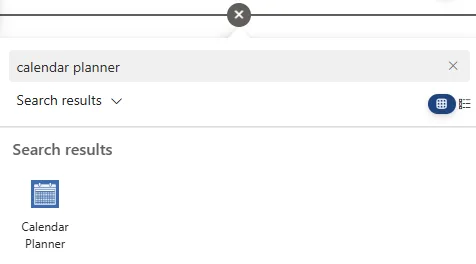
    • Search for Calendar Planner
    • Insert the web part and publish the page
    Search for Calendar Planner in the available web parts list on a SharePoint page
    Step 1

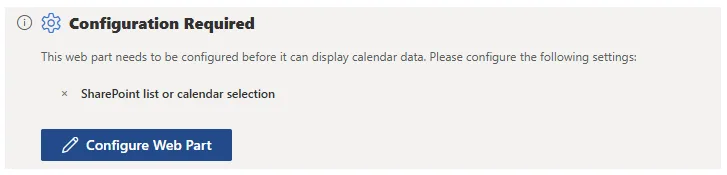
    Once the Calendar Planner web part has been added to the page:

    1. Press the ‘Configure Web Part’ button
    Calendar Planner added to a SharePoint page that still requires configuration
    Step 2

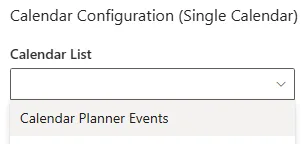
    Select a compatible List

    1. Calendar Planner can be configured to use any SharePoint Calendar list or standard lists that include a start and end date site column.
    2. This list stores all event items to be viewed on the Calendar Planner web part.
    Calendar Planner web part properties pane - selecting a Calendar List
    Step 3

    Configure Categories (optional)

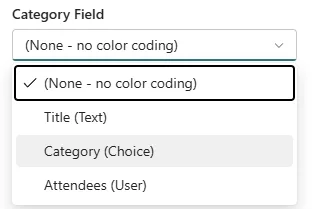
    The selected Calendar List may already have a category field/column, which can be selected in the web part property pane:

    Calendar Planner web part properties pane - selecting a category field

    If an existing category field does not exist – Under List Settings, configure:

    1. Category names
    2. Optional descriptions

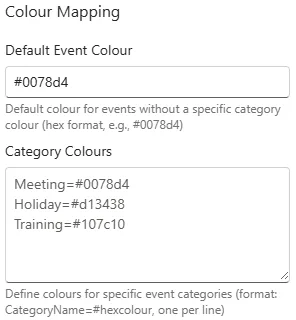
    These categories drive colour-coding in calendar views, which can also be defined in the web part properties:

    Calendar Planner web part properties pane - defining the category colours
    Step 4

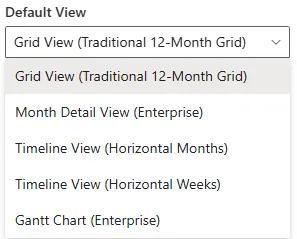
    Select Default View

    Choose the default display mode:

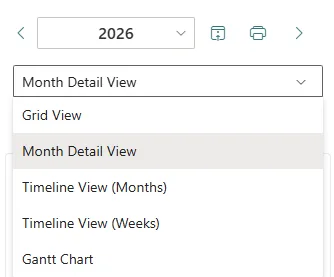
    1. Grid View
    2. Month View
    3. Timeline View (Months)
    4. Timeline View (Weeks)
    5. Gantt Chart
    Calendar Planner web part properties pane - selecting the default view

    Licensing Activation

    Calendar Planner validates your subscription using a secure SaaS licensing check.

    Activation process:

    1. The web part automatically detects your Microsoft 365 tenant ID
    2. It securely transmits:
      • Tenant ID
      • App ID
    3. No personal or event data is transmitted
    4. Valid licences activate the app immediately

    If your licence cannot be validated, you’ll see an in-app message with steps to resolve the issue.

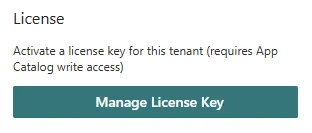
    You can manage your License at the bottom of the web part property pane:

    Calendar Planner web part properties pane - Manage License Key

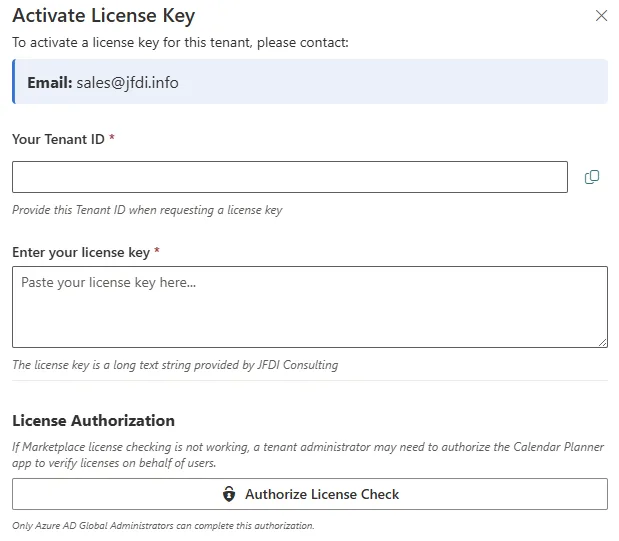
    Clicking on the ‘Manage License Key’ button will open the ‘Activate License Key’ pane:

    Calendar Planner web part properties pane - Activate License Key

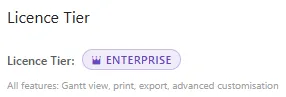
    When your license is validated, you will see the following at the top of the web part property pane with your corresponding License Tier on display:

    Calendar Planner web part properties pane - Validated License Tier
    Create Events

    Calendar Planner web part method:

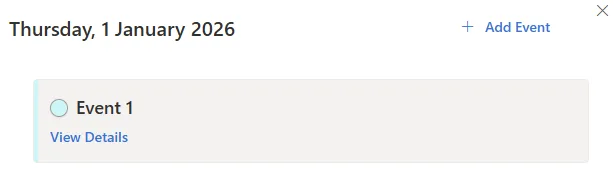
    1. Select any date to view the events listed for that date in a side panel
    2. Click on ‘Add Event’ located in the top right corner of the panel
    Calendar Planner web part properties pane - Add Event
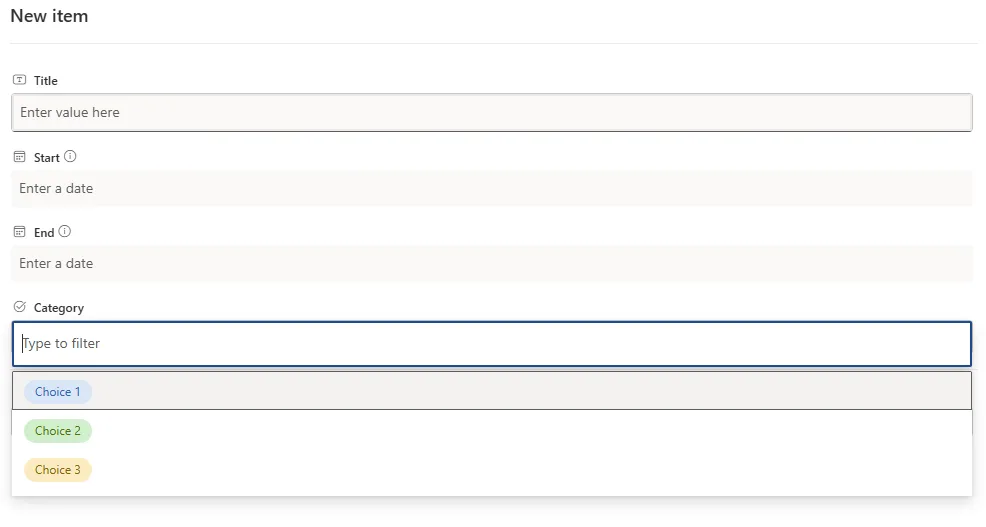
    1. Enter at least Title, Start and End dates
    2. Select a Category if configured
    3. Complete the ‘New Item’ form and hit ‘Save’
    Calendar Planner web part properties pane - SharePoint New List Item form

    Native SharePoint List method:

    1. Navigate to the SharePoint List(s) the web part was previously configured
    2. Click on ‘Add new item’ button
    Calendar Planner web part properties pane - SharePoint New Item button
    Edit Events
    1. Select an event from any view or when within a side panel, select ‘View Details’
    Calendar Planner web part properties pane - View Details of Event
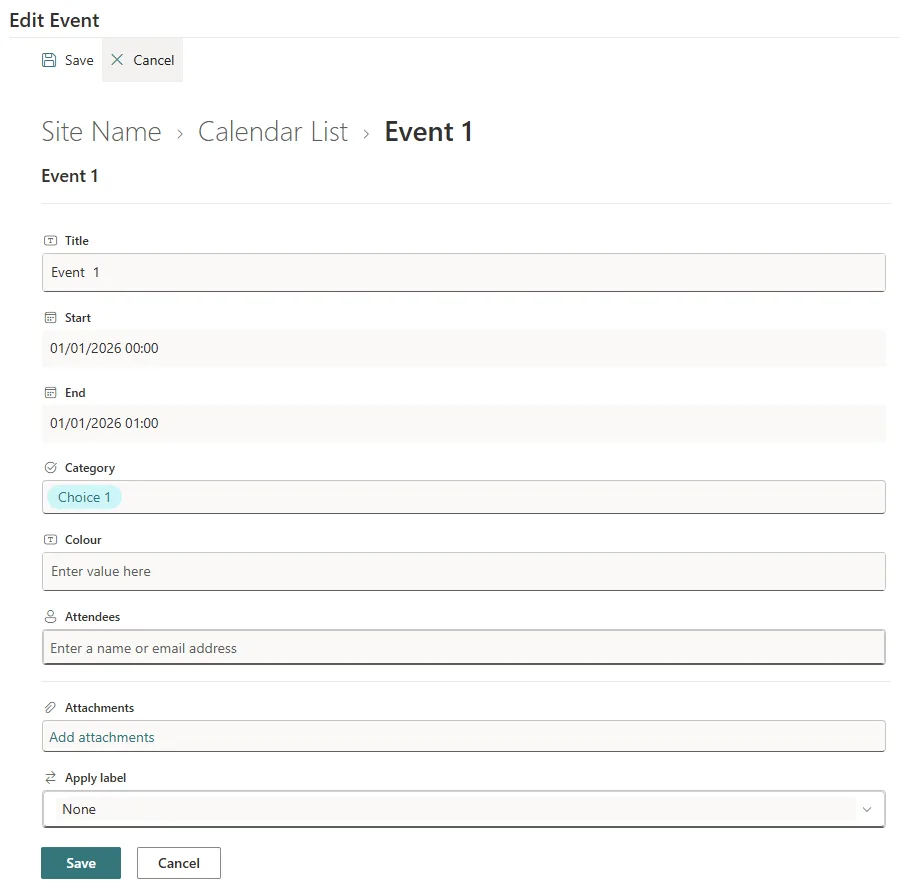
    1. The side panel will open for you to modify, save or cancel
    Calendar Planner web part properties pane - Edit Event
    Switch between Views

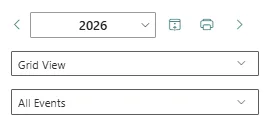
    Use the view selector to switch between visual layouts.

    Calendar Planner web part properties pane - Switching Views
    Filter by Category

    Select one or more categories to simplify the visualisation of workloads or event types.

    Calendar Planner web part properties pane - Filter by Category
    Switch List Views

    Calendar Planner also fully supports SharePoint List Views.

    Once defined, they are available in the dropdown below the normal web part view selector. Here is an example that restricts the view to ‘Just November’ using standard SharePoint List view filtering techniques:

    Calendar Planner web part properties pane - Selecting SharePoint List Views
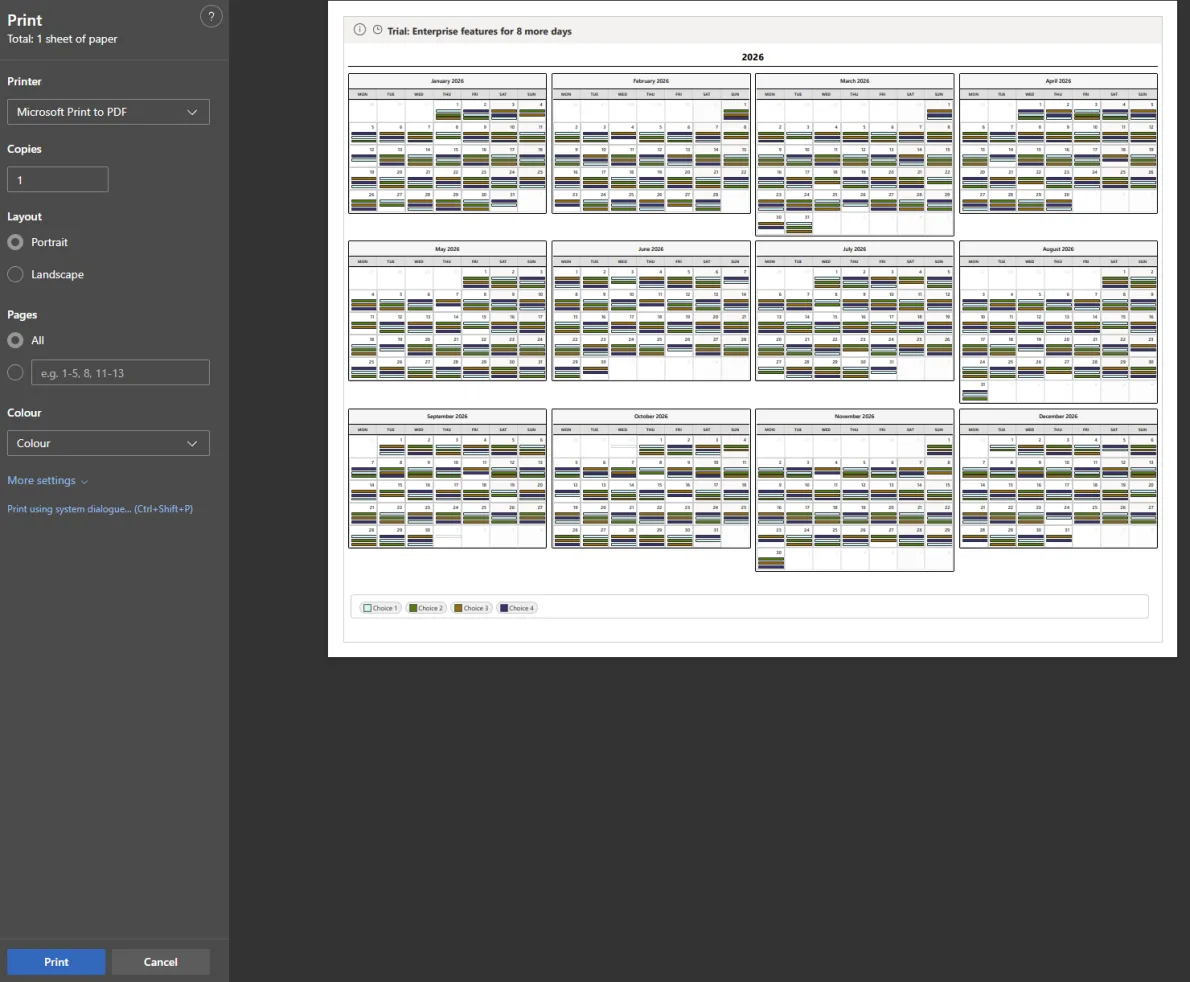
    Print Current View

    When on any view, you can select the ‘Print’ icon:

    Calendar Planner web part properties pane - Print any View

    Allowing you to send that view to a printer or create a PDF:

    Calendar Planner web part properties pane - View Print Layouts and PDF

    Permissions & Security

    Calendar Planner respects SharePoint permissions:

    SharePoint PermissionCalendar Planner Behaviour
    ReadUser can view events
    ContributeUser can view & add/edit/delete their events
    Full ControlFull list & app management

    No data leaves your Microsoft 365 tenant.

    Troubleshooting

    Web part not visible?

    • Ensure the Calendar Planner app is installed on the site
    • Confirm that the .sppkg was approved and deployed tenant-wide

    List not created?

    • User may lack permission to create lists
    • Create manually using template provided in documentation

    Licensing error?

    • Ensure your SaaS subscription is active
    • Contact support if tenant ID mismatch occurs